Shop & Deliver

Shop & Deliver is a new way to earn with Deliveroo

What is Shop & Deliver?

Shop & Deliver is a new type of order that gives you, and any registered substitutes, even more opportunities to earn with Deliveroo.

When a Shopping order pops up in your app, it’s a chance to get paid more per order.

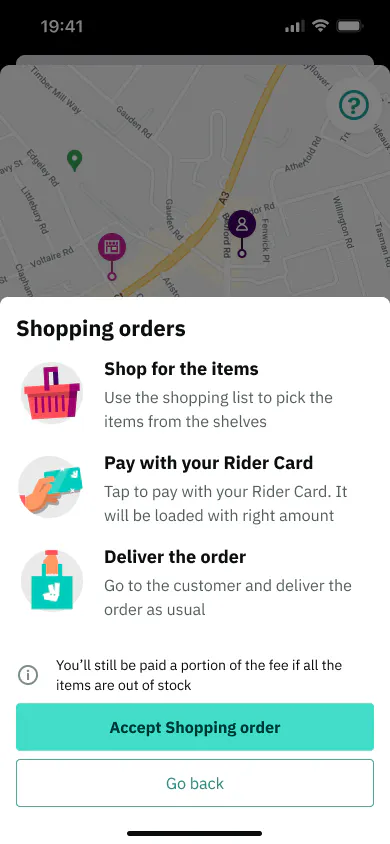
Shop & Deliver lets you earn more by shopping for and delivering customer orders from Aldi. When you accept a Shopping order, you’ll find and scan the items on the customer’s shopping list, pay using your virtual Rider Card and deliver the order to their door.

Before your first Shop & Deliver order be sure to:

💳 Add your virtual Rider Card 

📱 Try the online app demo

🎥 Watch our quick video guide

Got questions? We've got you covered with our list of FAQs.

Ready to get started?

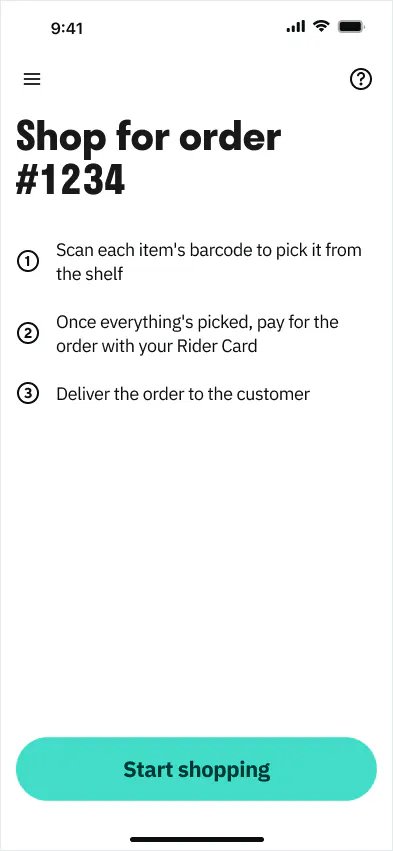
1️⃣ SHOP - follow the customer’s shopping list

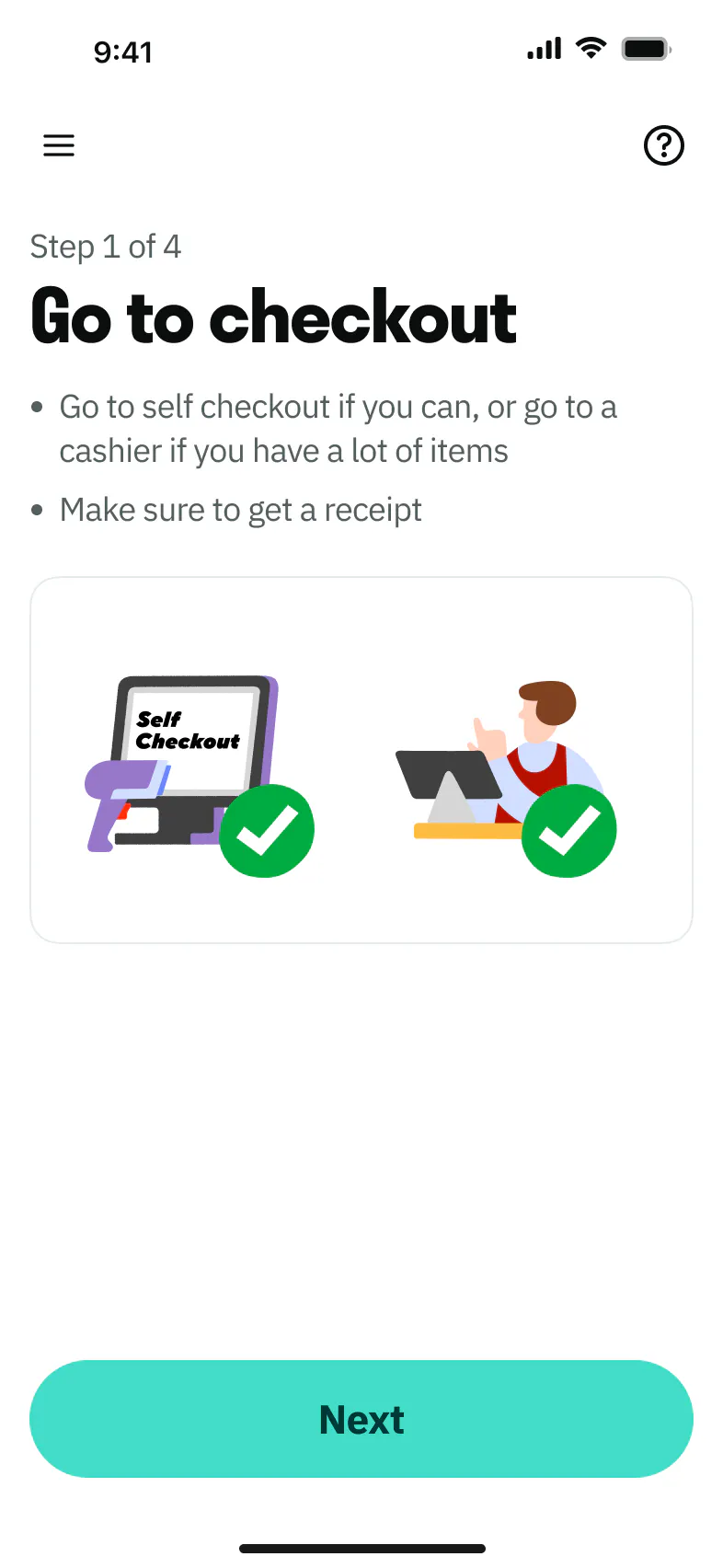
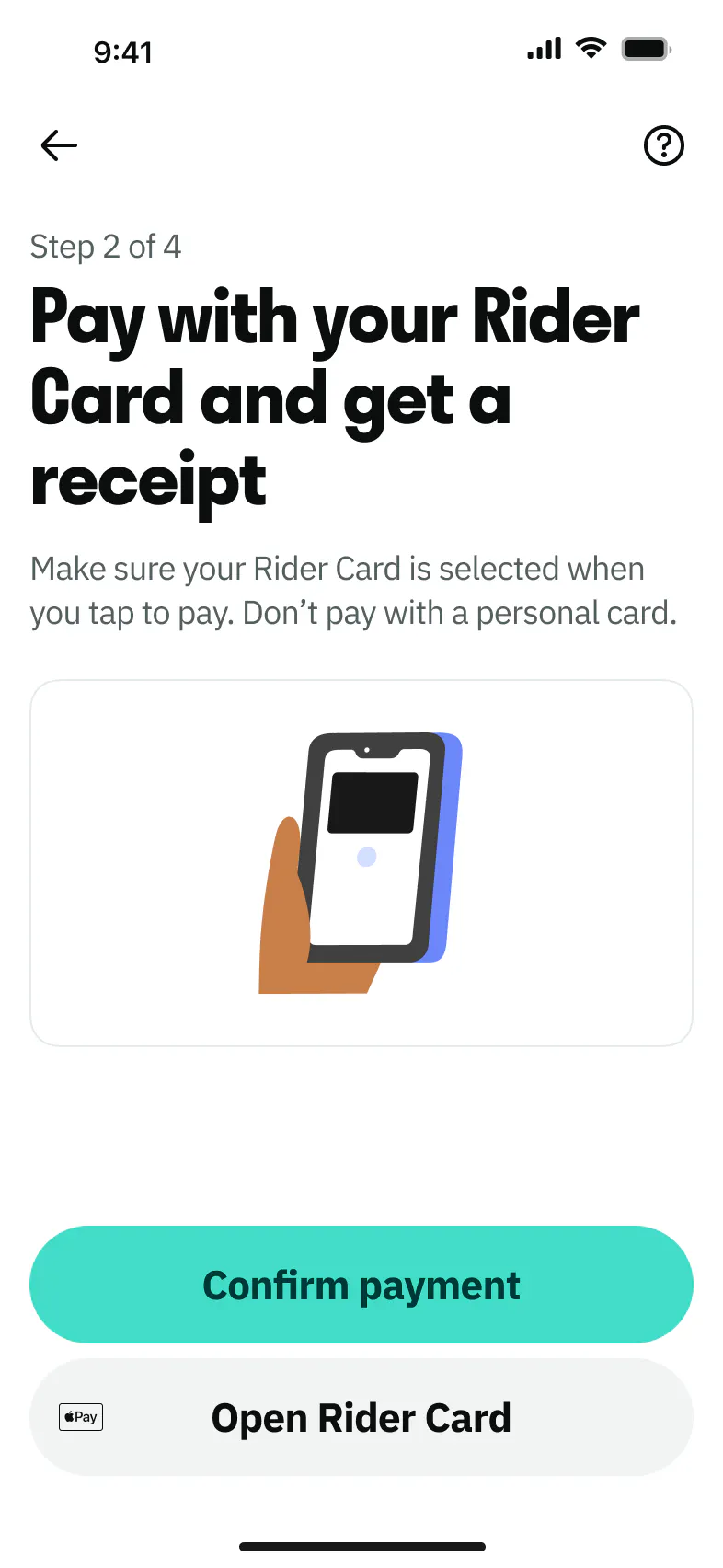
2️⃣ PAY - checkout using your virtual Rider Card

3️⃣ DELIVER - take the order straight to the customer
How to add your virtual Rider Card

To be offered Shopping orders, you'll need to add your virtual Rider Card to your Apple or Google Wallet. We'll let you know when you can do this. For any registered substitutes, their virtual Rider Card will become available to add once you've added yours. As a reminder, under your Supplier Agreement, you are responsible for any substitutes you use and for their actions while riding with Deliveroo.

When it's time to pay, we'll automatically load the card with the right amount to cover the customer's shopping, so you'll never need to use your own money to pay for an order.

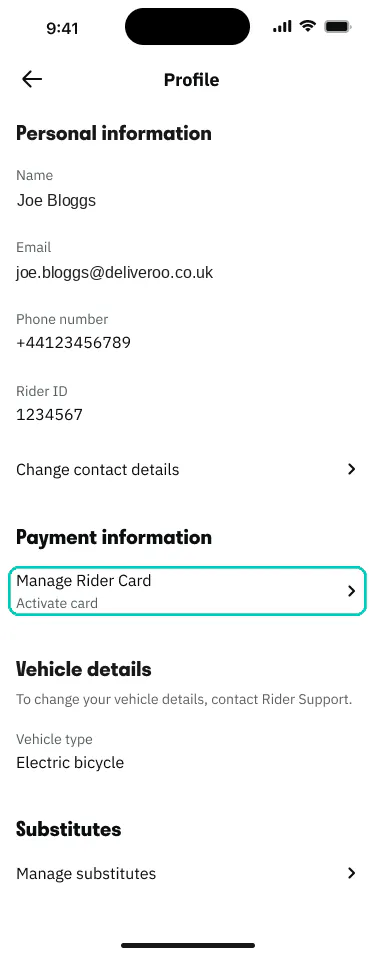
From your Profile page in the Rider App, tap Manage Rider Card and then Activate card and follow the instructions to add your card to your Apple or Google Wallet.

A quick guide to your first Shopping order

Need some help getting started? Check out our explainer video for a quick guide to completing your first Shopping order, from accepting the order to delivering.

What you'll see in the Rider app

Here's what you'll see at each step of a Shopping order.


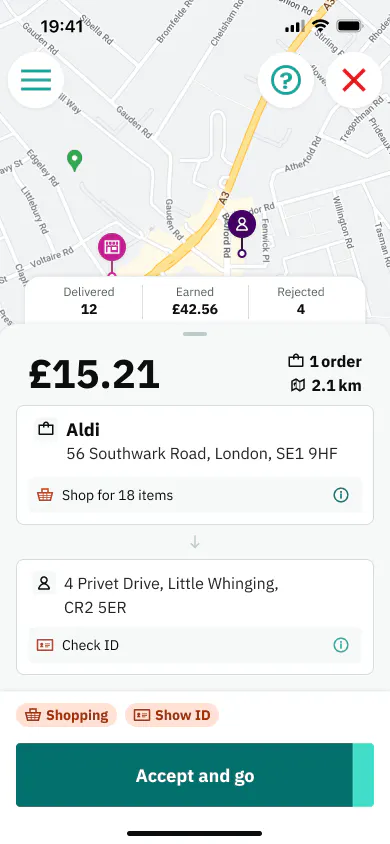
Accepting a Shopping order


Scanning packaged items

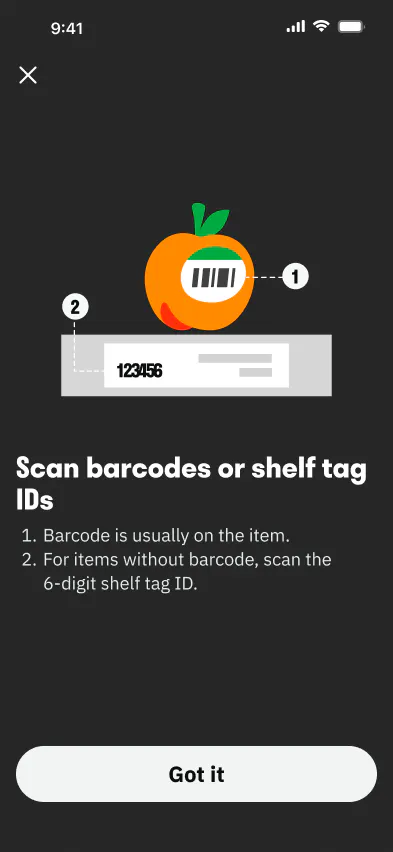
Scan the barcode on the packaging.


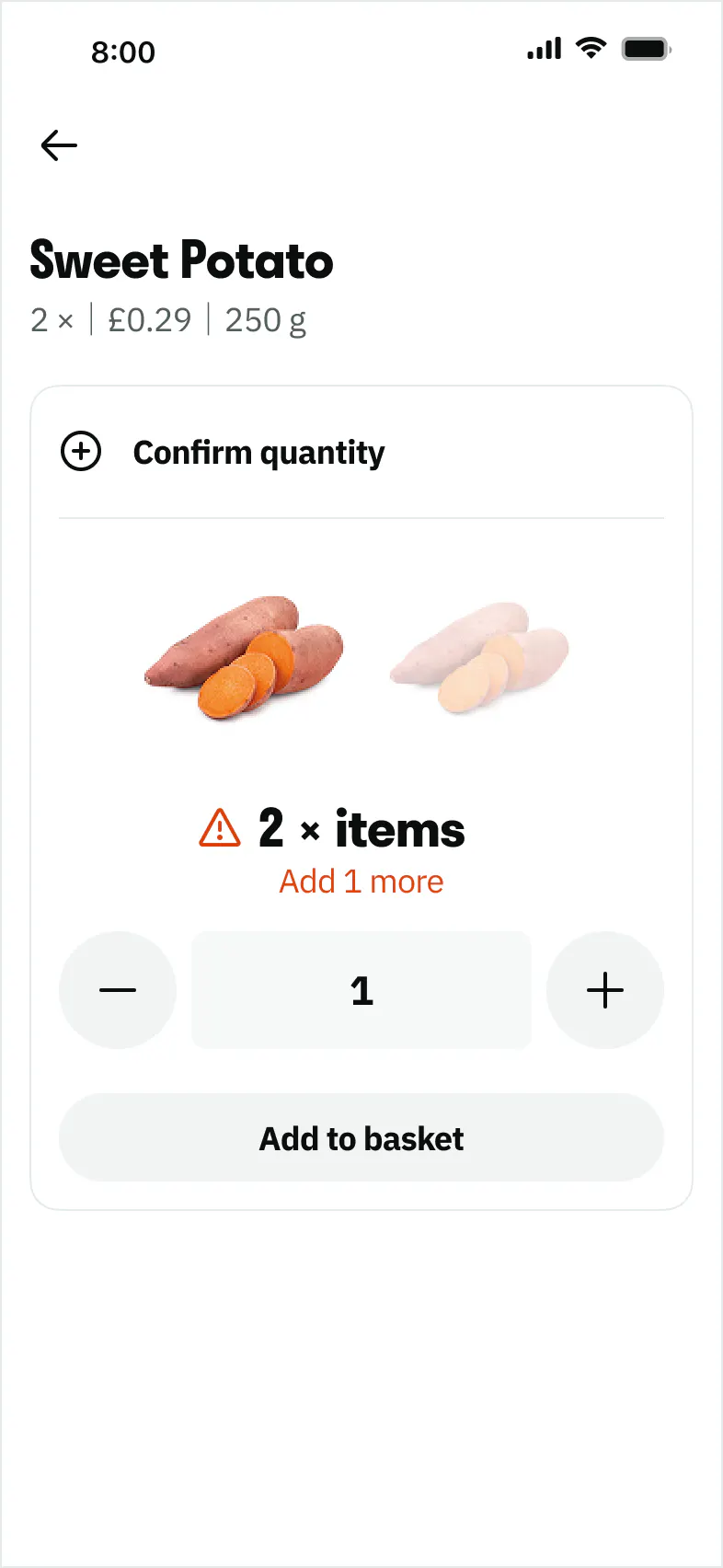
Scanning fruit and vegetables

When scanning fruit and vegetables, you might need to scan the sticker on the item or the shelf tag

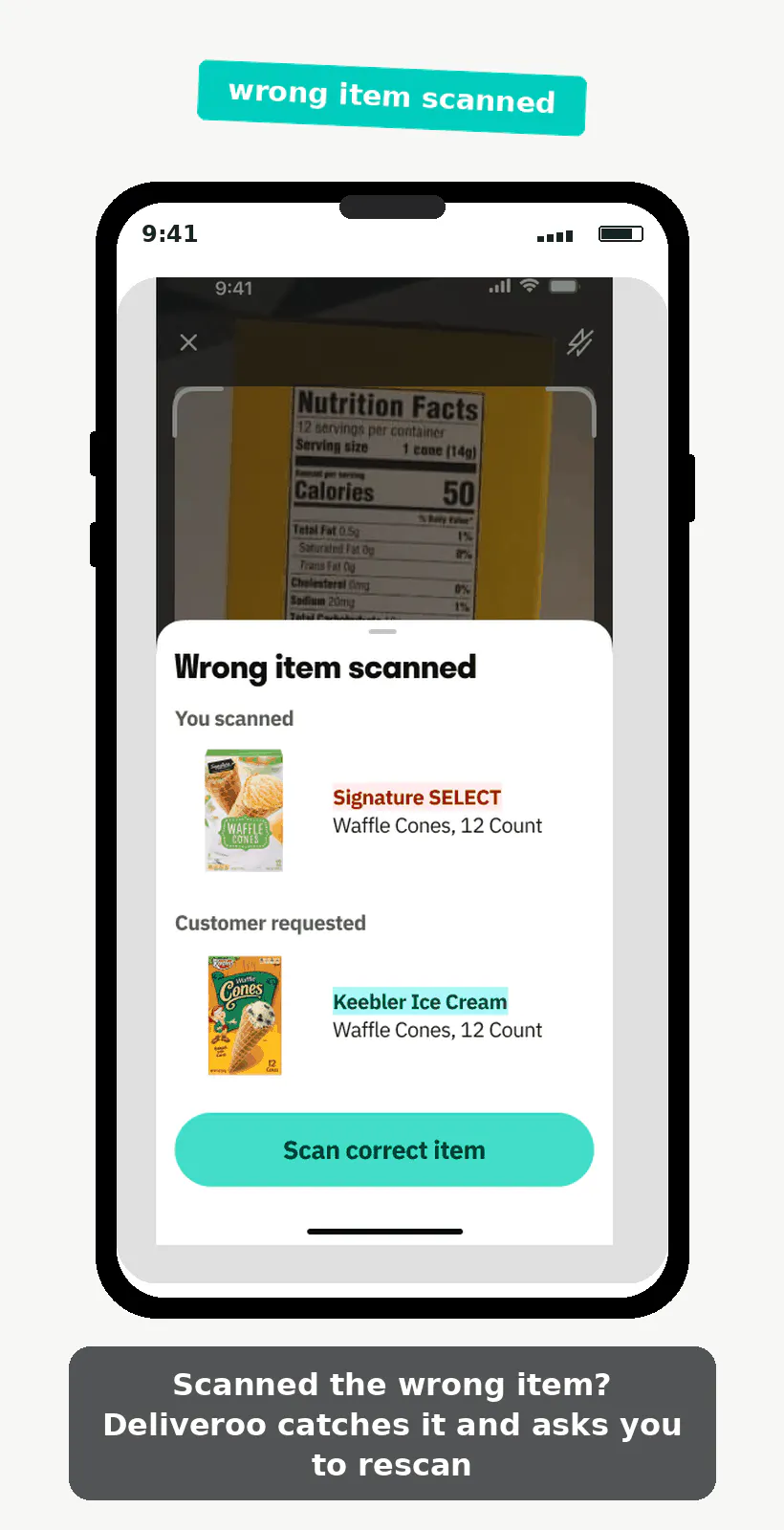
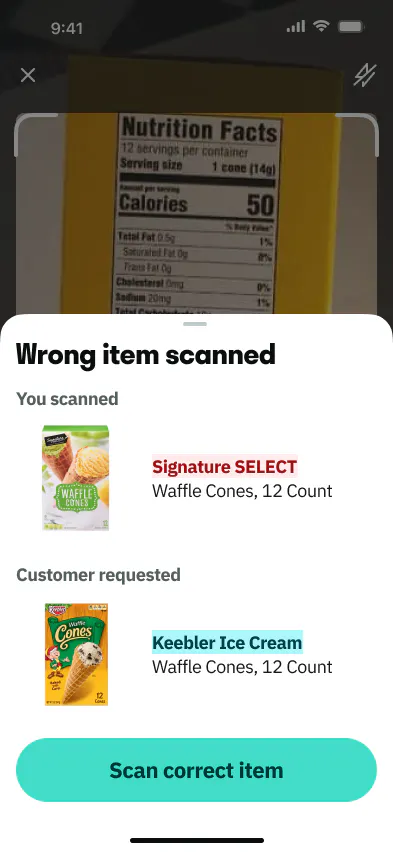
If you scan the wrong item

Don't worry if you scan the wrong item, the app will let you know.

Shop & Deliver FAQs

  • What is Shop & Deliver?

    With Shop & Deliver, customers can order items from Aldi, and have the order delivered straight to their door. Riders who accept these orders will shop in Aldi for the items the customer has ordered, pay with a Deliveroo Rider Card at checkout, and then deliver the order to the customer.

  • How do I know if an order is a Shopping order?

    When you're offered a Shopping order, the acceptance screen will clearly show that it's a Shopping order and display the number of items you'll need to shop for. You can then choose if you’d like to accept the order or not. It will also show if the order includes age restricted products, like alcohol.

  • Do I need to add the virtual Rider Card before I can be offered these orders?

    Yes. You must activate your Rider Card, by adding it to your Apple or Google wallet, before you can be offered Shopping orders.

    From your Profile page in the Rider App, tap Manage Rider Card and then Activate card and follow the instructions to add your card to your Apple or Google Wallet.

    For any substitutes on your Rider account, they’ll need to activate their own card after you have activated yours by adding it to your digital wallet. As a reminder, under your Supplier Agreement, you are responsible for any substitutes you use and for their actions while riding with Deliveroo.

  • How do I add the Deliveroo Rider Card to my phone?

    We’ll let you know when your virtual Deliveroo Rider Card is ready to be activated. When it is, follow the link and tap ‘Add to Wallet’.

    Don't worry if you missed the link. From your Profile page in the Rider App, tap Manage Rider Card and then Activate card and follow the instructions to add your card to your Apple or Google Wallet.

    Apple Wallet guide:

    Google Wallet guide:

  • Do Shopping orders pay more than standard orders?

    The fee for each Shop & Deliver order is shown on the order acceptance screen.

    Shopping orders typically pay more than standard delivery only orders because the fee includes both the delivery and shopping for the items. In general, orders with more items pay a higher fee. You can always choose if you want to accept and order or not.

  • How will these orders appear in my earnings?

    Shop & Deliver fees will appear in your earnings as normal and will be added to your rider fee account on the next rider fee day.

  • What do I do when I arrive at the shop?

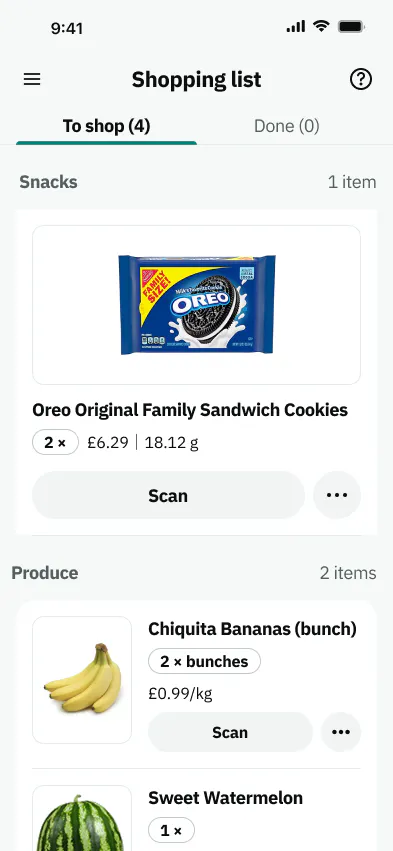
    When you arrive at the shop, tap the ‘Start Shopping’ button. Then find and scan each item on the customer’s shopping list. The app will guide you through each step. 

    Watch our video guide to see a shopping order from start to finish.

  • How do I find the items I need to get for the customer?

    The app will show you photos of the item to help you find the right items. When you scan the item in the app it will confirm it’s the right item.

    You may need to scan the barcode on the item or the shelf tag, the app will guide you.

  • What should I do if an item is unavailable?

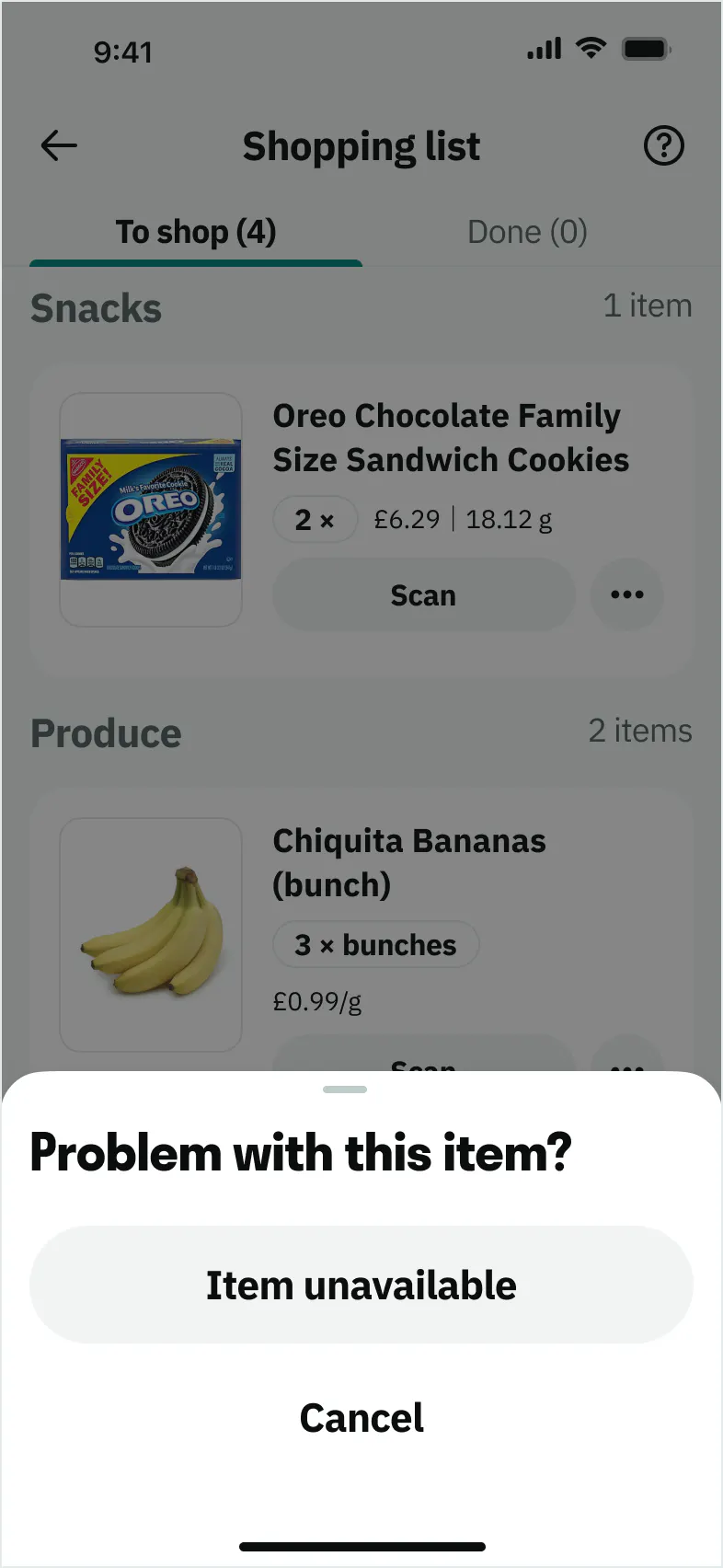
    If the item the customer has requested is unavailable, you’ll be able to mark it in the app as unavailable and continue with the rest of the shopping list.

  • What happens if all the items are unavailable?

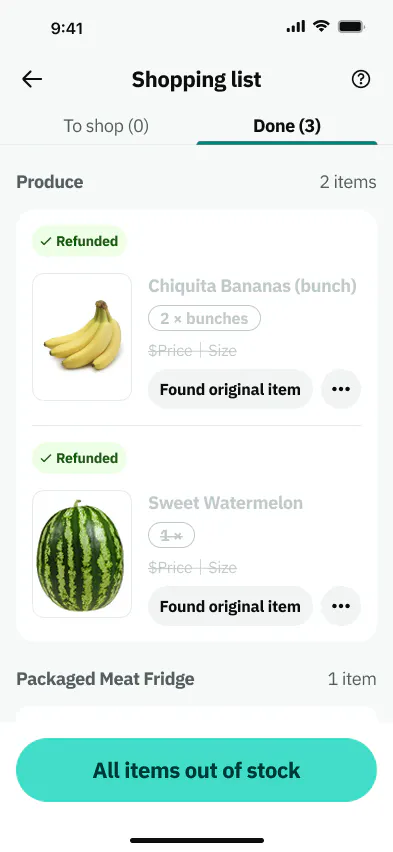
    If all of the items the customer has requested are unavailable, you’ll be able to mark this in the app. Once you confirm that all items are unavailable, you’ll be guided to confirm that with Rider Support.

  • Can I choose a substitute item for the customer?

    No. If the item the customer requested is not available there is no need to choose a substitute item for them. You should simply mark the item as unavailable and continue with the rest of the shopping list. 

  • What should I do if I can’t scan an item?

    Some items, such as sweet peppers or sweet potatoes may not have a barcode on them or a shelf tag to scan. When this happens, you will then need to confirm the quantity (for example 2 sweet potatoes) and add them to the basket.

  • What happens if I scan the wrong item?

    If you scan the wrong item, the app will show you that the item doesn’t match the shopping list. The wrong item will not be added to the customer’s shopping or payment total and you should place it back on the shelf. The app will ask you to find and scan the correct item. 

  • How will I know if a Shopping order includes an age restricted product?

    If a Shopping order contains an age restricted product, like alcohol, the acceptance screen will show you that you may need to show ID in the shop and then check the customer’s ID on delivery. You can choose to reject the offer if you prefer not to deliver age restricted products.

  • Where can I get help if something goes wrong during a Shop & Deliver order?

    The Live Rider Support team is there to help you with any questions or issues you have about an order you’re currently completing, or need to unassign yourself from if your vehicle breaks down or you’re involved in an accident.

    You can contact live support by tapping the "support" button in the app.

    If you do need to contact Live Support through Chat, help the team to help you as quickly as possible by:

    • Including your question or issue in your first message
    • Giving any other relevant information, like the order number
    • Letting them know what steps you have taken to try and resolve the issue so far
  • How do I pay for the order at the checkout?

    When you reach the checkout, your Rider Card will be loaded with enough money to cover the customer's shopping.

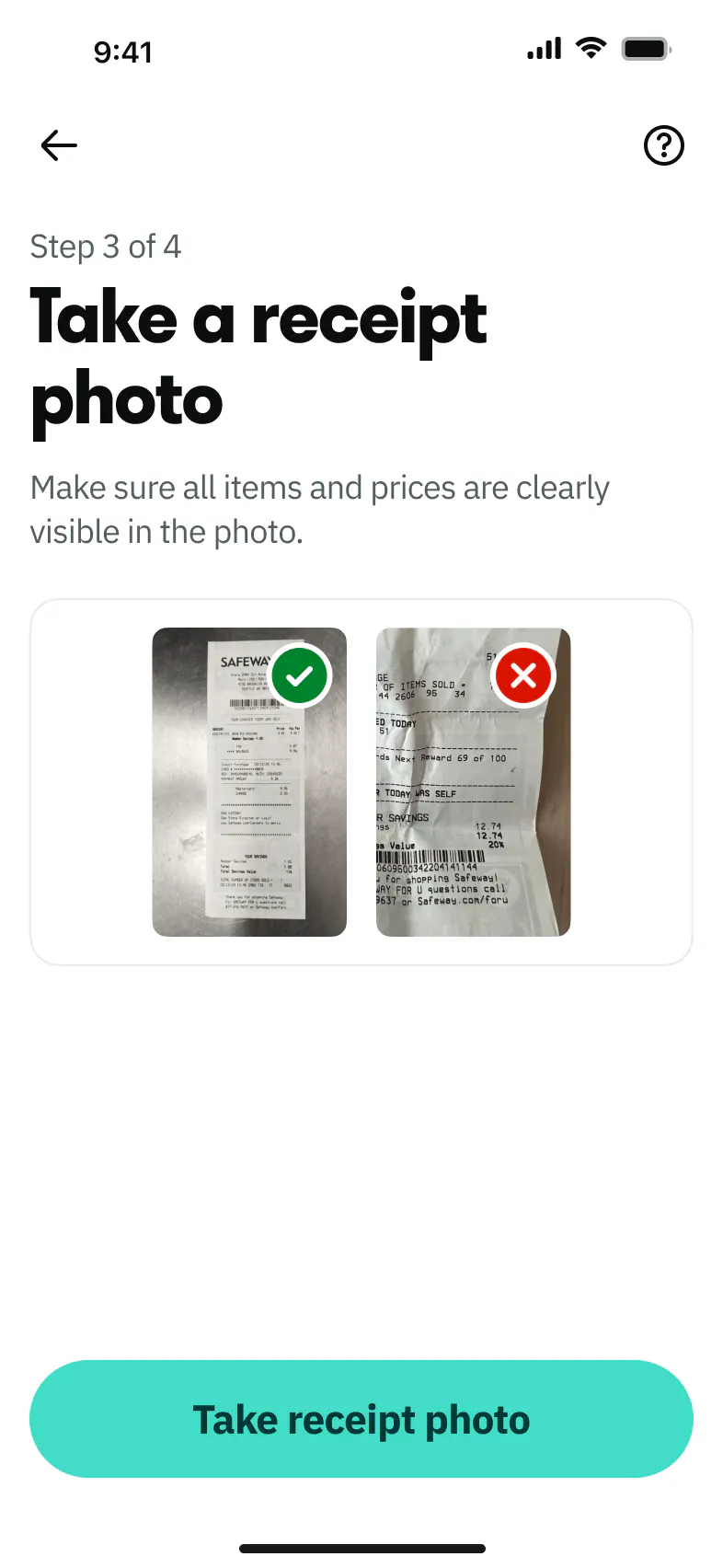
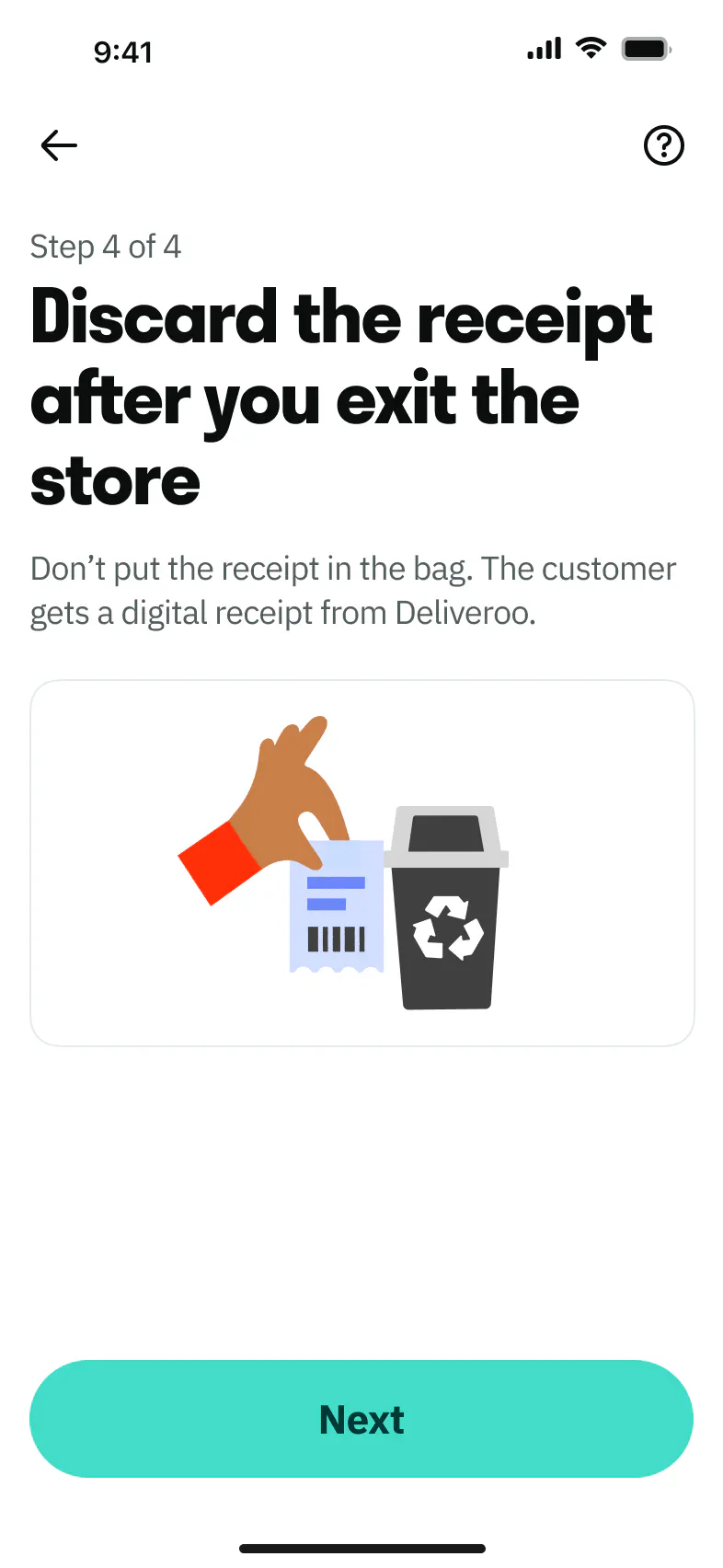
    To pay, use the Rider Card in your Apple Wallet or Google Wallet at the checkout. Once you've completed the payment, you'll be asked to upload a photo of the receipt in the Rider app before throwing the receipt away and continuing with the delivery.

  • What type of bag should I pack the shopping into?

    When you arrive at the shop, please take a basket or a trolley. Do not place items straight into your delivery bag.

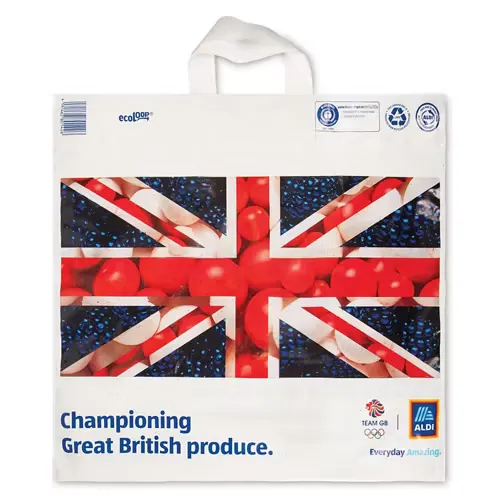
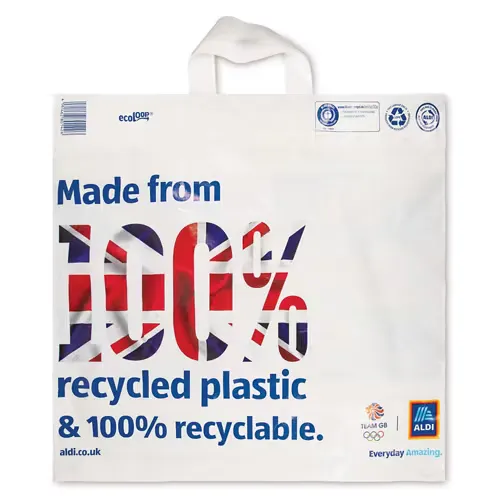
    At the check out, please pack the customer’s shopping into an Eco Loop carrier bag like this.

    You can often find these bags under the checkout counter or if you’re using a self checkout, you’ll need to ask the assistant for them. You’ll need to make sure the bags are scanned.

  • What should I do if the virtual Rider Card doesn’t work?

    If your Rider Card won’t work, make sure you have tapped the ‘Go to checkout’ button and that all items have been scanned at the check out. If the payment doesn’t work, it will automatically retry three times. After that, you’ll need to contact Rider Support.

  • Do I need to upload the receipt after paying?

    The Rider app will guide you to take a photo of the receipt before leaving the shop. You should then throw away the receipt when you’ve left the store.

  • Can I start the delivery before I upload the receipt?

    No. Once you take a photo of the receipt, the delivery address and suggested route will be shown in the app.

  • Can I reject a Shopping order?

    Yes. As with all orders offered to you by Deliveroo, you are always free to choose which orders you accept or reject without penalty.

    If you cancel an order after you have accepted it, you won’t be paid for it.

  • What should I do if I want to cancel the order after I’ve started shopping?

    You can cancel a Shopping order, just like any other order. If you do this part way through a shopping list, please replace the items. You won’t be paid for orders you cancel.